
Simple YouTube Slider
A simple, responsive YouTube video slider with playlist and manual URL support.
Add the shortcode to any post or page.
Documentation
Please see the documentation of the “Simple YouTube Slider” plugin.
Overview

Simple YouTube Slider lets you display YouTube videos in a responsive slider.
Add the shortcode to any post or page:
[simple_youtube_slider] — Displays YouTube videos using either a YouTube Playlist ID or manually added YouTube video URLs configured in the plugin settings.
[simple_youtube_slider id=”VIDEO_ID,VIDEO_ID”] — Show specific videos using comma-separated YouTube video IDs.
[simple_youtube_slider title=”Featured Videos”] — Optional heading displayed above the slider.
[simple_youtube_slider id=”VIDEO_ID” title=”Featured Videos”] — Combine both optional attributes.
FEATURES
With the Pro version, you can now enjoy the following additional features:
– Shortcode support to display the slider anywhere
– Video sources
– YouTube Playlist ID (requires YouTube API key)
– Manual YouTube video URLs (one URL per line)
– Shortcode attribute to provide a comma-separated list of YouTube Video IDs
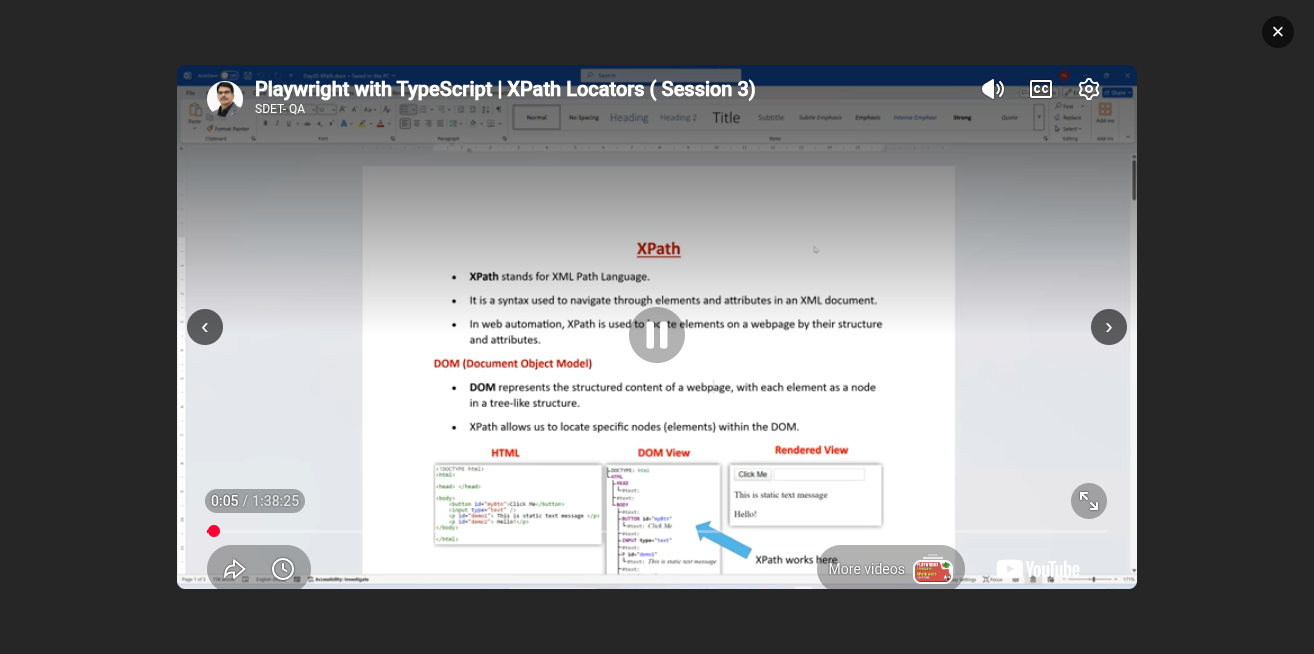
– Popup / lightbox video player (loads the iframe only on click)
– Responsive slider powered by Swiper
– Mobile: 1 slide per view
– Tablet: up to 2 slides per view (based on your setting)
– Desktop: configurable slides per view
– Slider controls
– Autoplay on/off
– Autoplay speed (milliseconds)
– Navigation arrows on/off
– Pagination dots on/off
– Loop on/off
– Performance friendly
– Uses YouTube thumbnails
– Thumbnails use native lazy loading
Getting Started
Requirements –
To get the best experience with this Simple YouTube Slider plugin, we recommend the following:
PHP 7.4 or later
MySQL 5.6 or later
WordPress 4.7 or later
To be sure about the above requirements, contact your hosting vendor.
Installation & Activation –
This content explains how to install the plugin and get it working.
This plugin can be installed directly from your site.
- Download the Simple YouTube Slider plugin from your account page under the Orders tab.
- Log in to your WordPress admin panel and go to Plugins → Add New.
- Click Upload Plugin, choose the downloaded ZIP file, and click Install Now.
- Once the installation is complete, click the Activate button to enable the plugin.
It can also be installed manually.
- Download the Simple YouTube Slider plugin from your account page under the Orders tab.
- Unzip the package and move it to your plugins directory.
- Login to the WordPress and navigate to the Plugins screen.
- Locate the Simple YouTube Slider in the list and click the Activate link.
Settings
Backend Settings:
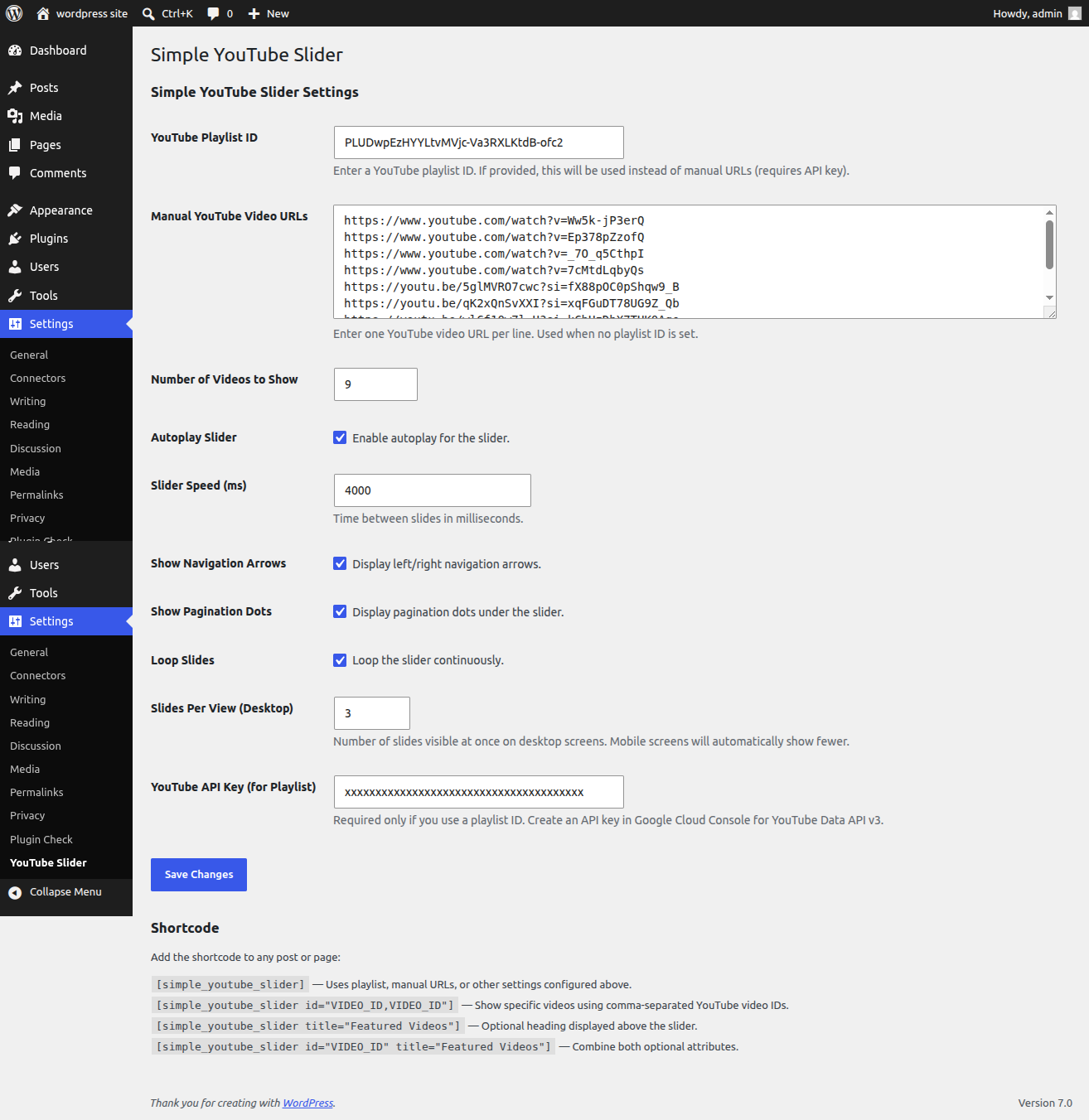
Frontend View:
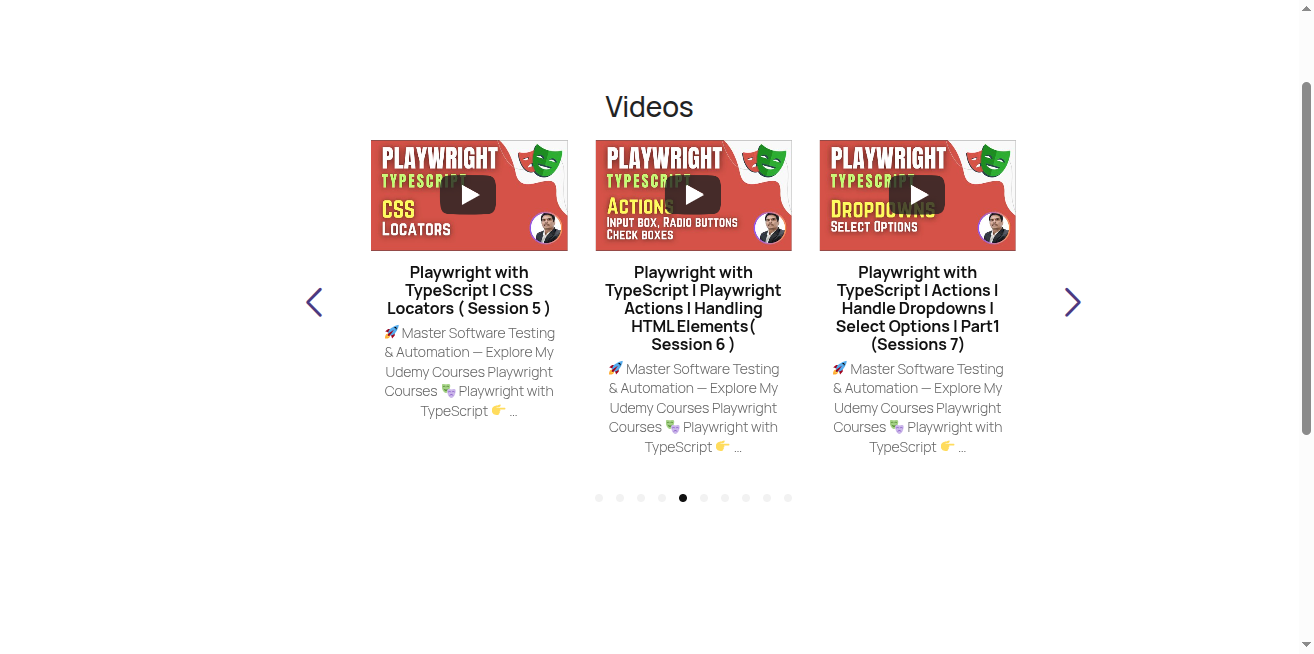
Reviews Simple YouTube Slider
We hope you enjoy using the Simple YouTube Slider. Please note that we are always trying to improve it.
Thanks so much in advance!
FAQs
Ans. Only if you want to load videos from a YouTube Playlist ID or fetch titles/descriptions for manual URLs / IDs. If you only use manual URLs or IDs without an API key, the slider can still display using thumbnails.
Ans. Go to Settings → YouTube Slider in your WordPress admin.
Ans. Add the shortcode `[simple_youtube_slider]` to any post, page, or widget area that supports shortcodes. In the block editor, use the Shortcode block and paste the shortcode there.
Ans. The plugin checks sources in this order:
1. Video IDs passed in the shortcode `id` attribute (highest priority)
2. YouTube Playlist ID from the settings (requires an API key)
3. Manual YouTube video URLs from the settings
Ans. You can use standard watch links (`https://www.youtube.com/watch?v=VIDEO_ID`) and short links (`https://youtu.be/VIDEO_ID`). Enter one URL per line in the settings.
Ans. Yes. Use the shortcode `id` attribute with a comma-separated list of YouTube video IDs, for example: `[simple_youtube_slider id=”dQw4w9WgXcQ,9bZkp7q19f0″]`. Each page can use its own list of IDs.
Ans. The slider outputs nothing when no videos can be loaded. Check that you have configured a playlist ID (with a valid API key), added manual video URLs, or passed video IDs in the shortcode. Also confirm the shortcode is placed on a published page and that the video URLs or IDs are valid.
Ans. Use the Number of Videos to Show setting on the settings page. This applies to playlist and manual URL sources. The limit is 50 videos. When you pass video IDs in the shortcode, all IDs you provide are used.
Ans. Yes. The slider is powered by Swiper and adapts by screen size: 1 slide on mobile, up to 2 on tablet, and your configured Slides Per View (Desktop) setting on larger screens.
Ans. The slider displays YouTube thumbnail images in the carousel. The YouTube iframe is loaded only when a visitor clicks a thumbnail and opens the lightbox player.
Ans. Create a project in [Google Cloud Console](https://console.cloud.google.com/), enable the YouTube Data API v3, and create an API key. Paste the key into the YouTube API Key (for Playlist) field on the plugin settings page. An API key is required only for playlist-based video loading or for fetching video titles and descriptions.
Ans. Open the playlist on YouTube. The playlist ID is the value after `list=` in the URL. For example, in `https://www.youtube.com/playlist?list=PLxxxxxxxx`, the playlist ID is `PLxxxxxxxx`.